Your customers write back. Your AI answers
Let an AI answer incoming RCS messages for each of your senders, from the instructions and sources you give it, with a person one email away whenever it should step aside.
Every RCS campaign starts conversations: a question about opening hours, a "do you have this in blue", a "how much does it cost". Autoreply answers them for you. You tell it who it answers for, sort the topics into categories with their own sources, choose how often it may reply to one contact, and switch it on per sender. It answers in the language the customer writes in, with the same rich cards, carousels and chips you send yourself. When a question falls outside what you allowed, or a customer is unhappy, it stays quiet and emails you a link straight into the conversation. Autoreply runs on your own AI key.

A reply within seconds, written from your instructions and your shop, in the customer's language.
The reply that comes in a minute, not tomorrow morning
A message that is answered while the customer is still holding the phone is worth more than the same answer the next day. Most businesses cannot staff an inbox around the clock, so replies wait, and the moment passes. Autoreply answers the routine questions right away: facts from your instructions, details from your own web pages and your shop, in the tone you set. Your team keeps the conversations that need a person.
It is built for a business, not for a chatbot demo. The AI never invents a price, an opening hour or a link. It only uses what you wrote, what your sources contain, and what the business itself sent earlier in the thread. Complaints, cancellations, refunds, payment, legal or medical questions and anyone asking for a person are never answered automatically. They are handed to you, with the message and a button that opens the conversation in your RCS inbox.
What Autoreply gives you
Instructions, categories, sources, limits and alerts, set per sender, with every reply on record.
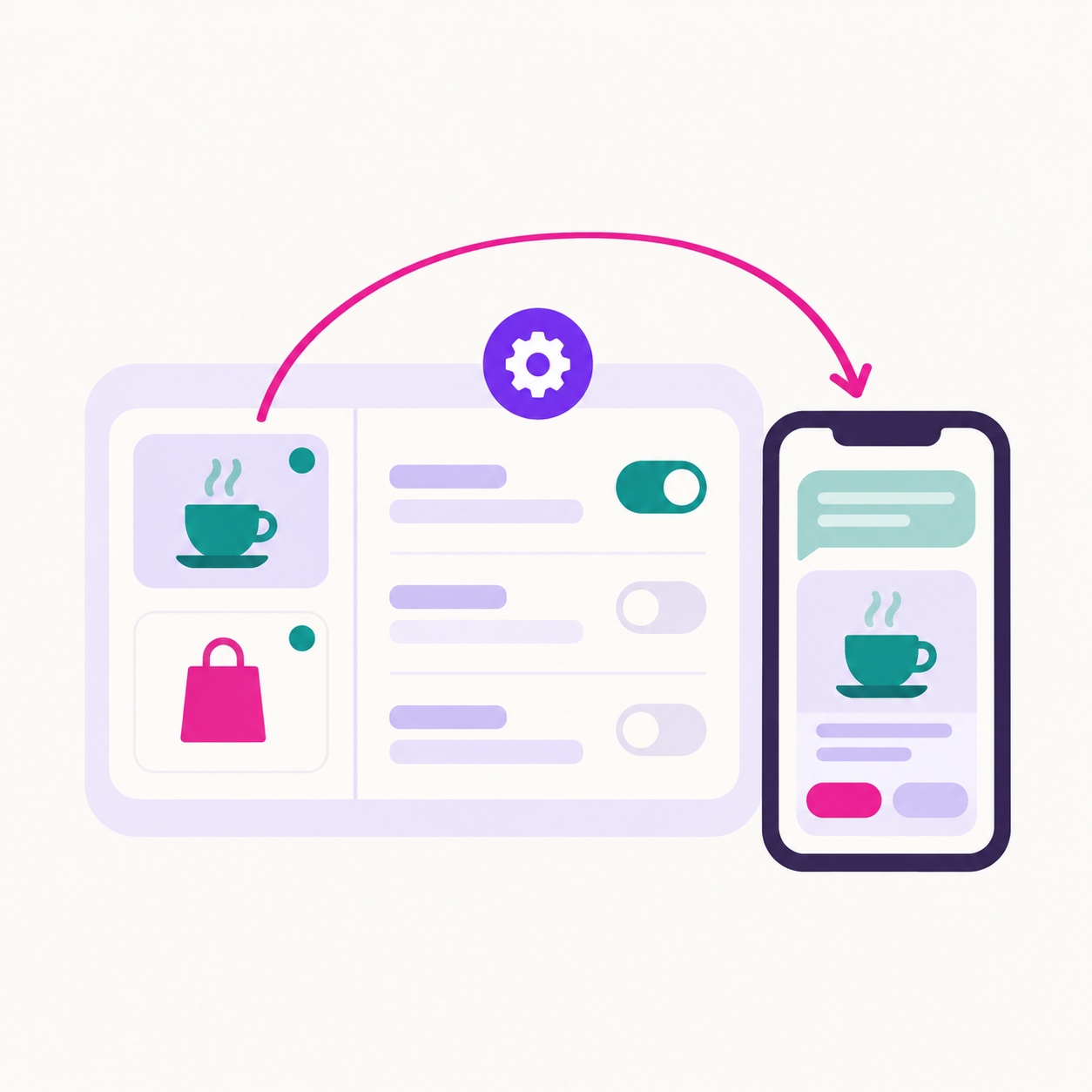
Set up per sender
Open Autoreply under Your AI tools and you see every RCS sender with its status. Open one, and everything about its replies lives on one page: instructions, categories, message types, limits, alert emails. Save once, and it is live for that sender only. A café and a webshop on the same account can answer in completely different ways.
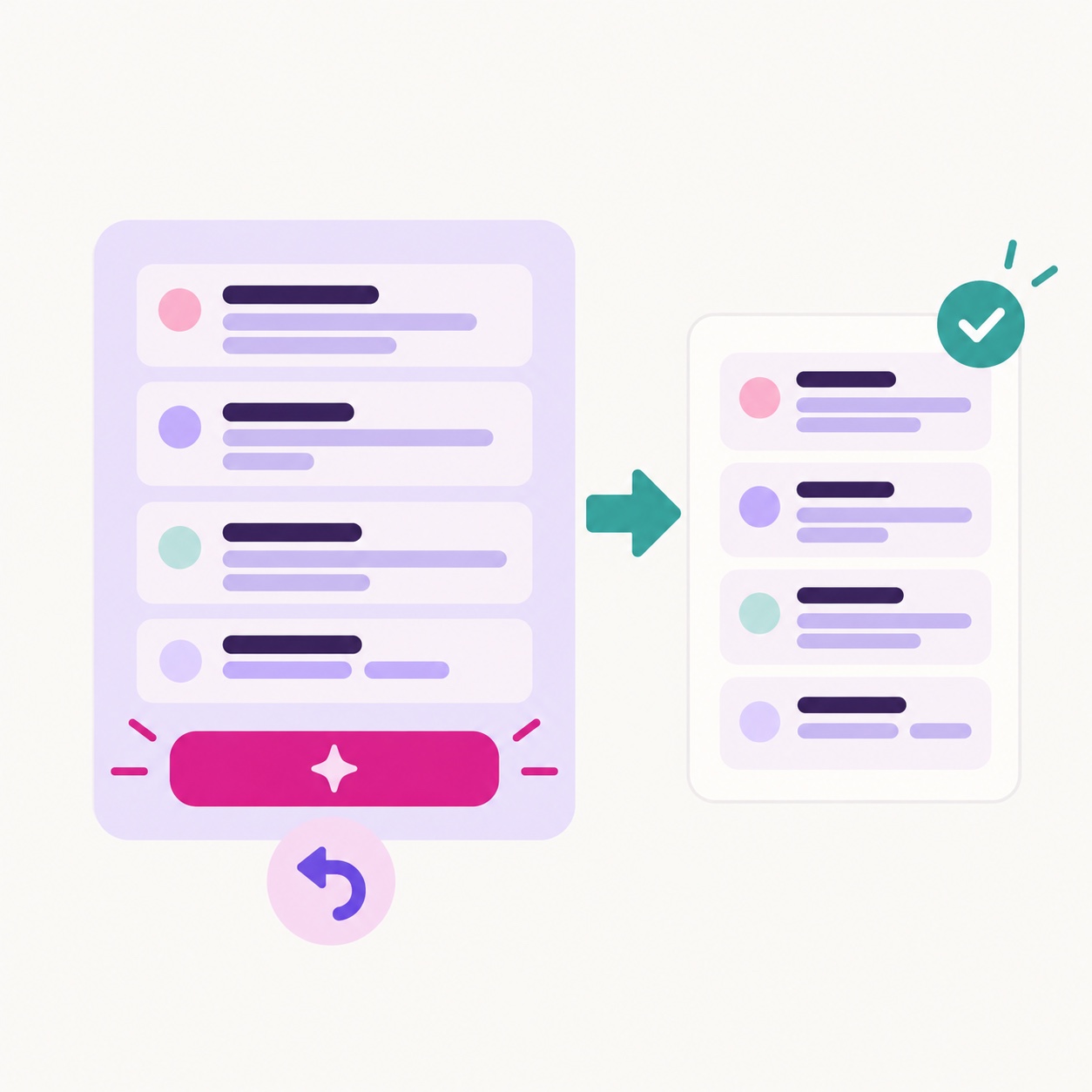
Instructions in plain language
Tell the AI who it answers for, the tone, the facts it may use and when to hand over, in a single text field. Not sure how to phrase it? Press "Improve with AI" and your draft is rewritten into a clearer, better structured instruction in the same language, with every fact kept exactly as you wrote it, and an Undo button if you preferred your own version.
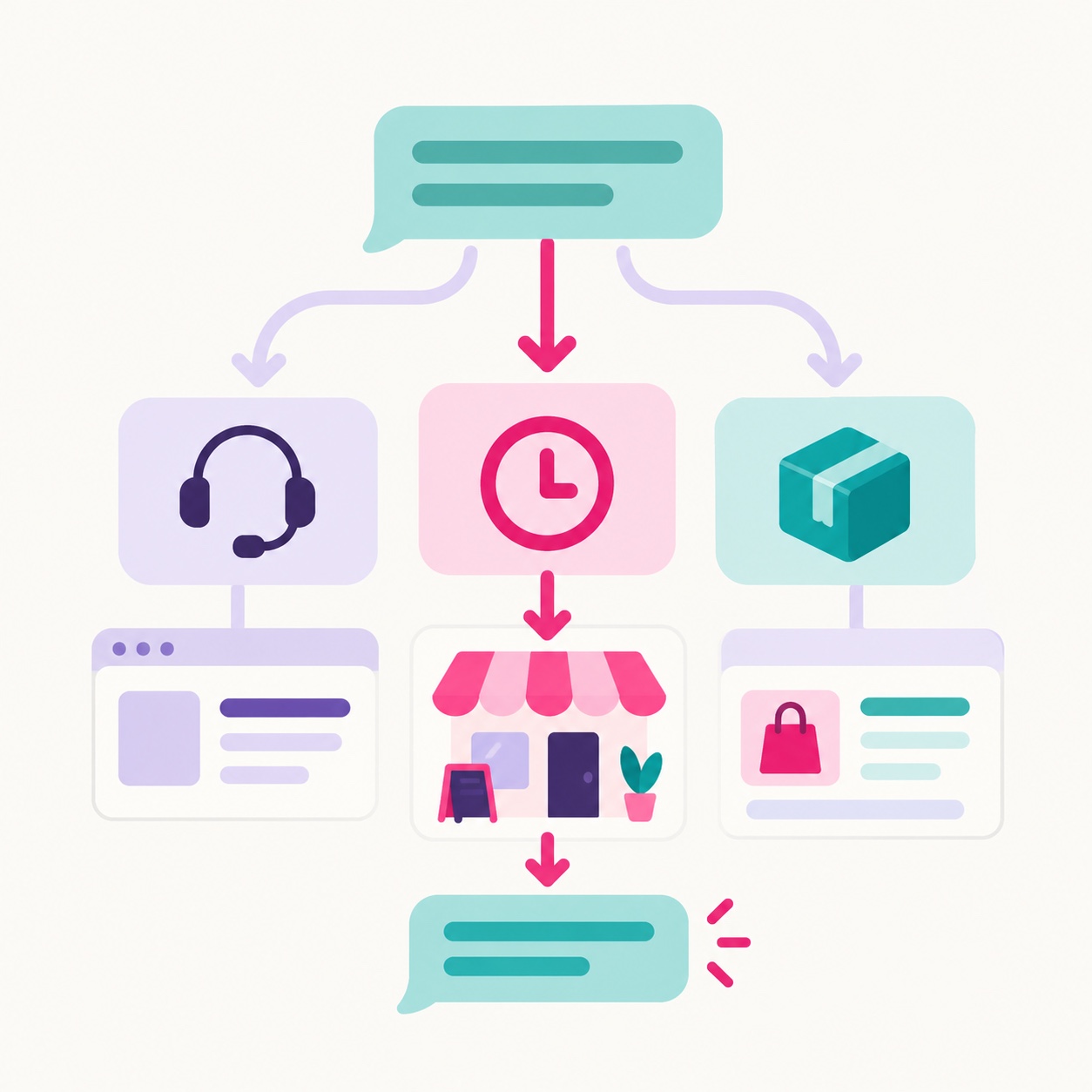
Categories with their own sources
Sort incoming messages into categories such as "Support", "Opening hours" or "Orders". Each category has its own instructions and the sources the AI may read for it: your connected shop, the web pages you added under Sources, your LinkedIn page. A message is sorted into the matching category first and answered from that category's sources. A question that fits no category is answered from the sender instructions. Only what nothing covers is handed to a person.
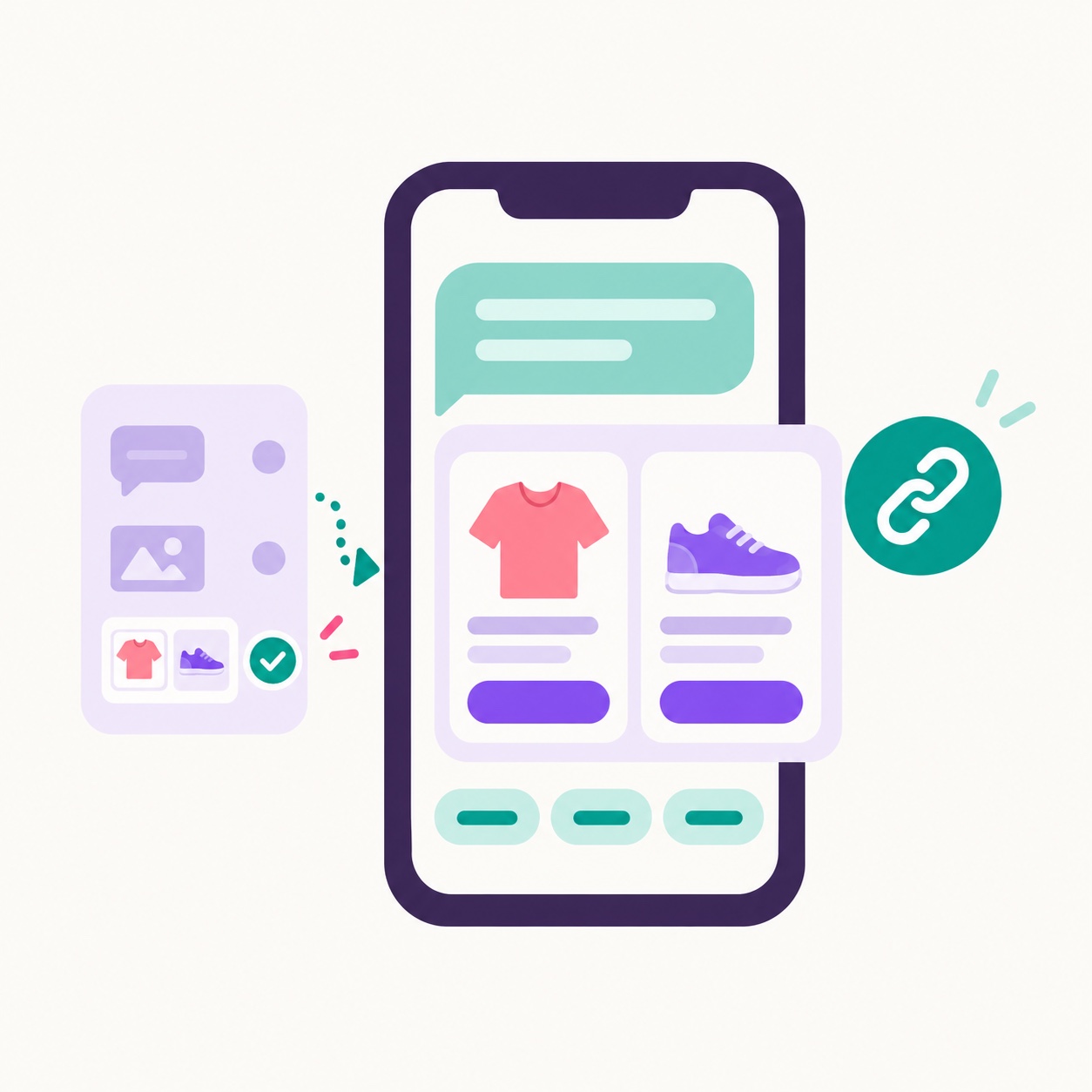
Replies that look like yours
Choose which message types the AI may use: text with reply chips, a rich card, a carousel, each set to Prefer, Allow or Never. A rich card appears when a picture from your Media Library or your shop genuinely helps, a carousel when two or more products are compared, and plain text the rest of the time. Links only ever point to your own domains, your sources or your earlier messages. Replies end with up to three suggested reply chips when a follow-up is natural.

Limits that protect the conversation
Set how many automatic replies one contact may get per hour and per 24 hours. The defaults are 3 and 10. Above the limit the AI stays silent and you get one email per contact per day, so a long conversation always reaches a person. A tapped reply chip only counts as a message if you switch that on; taps on link, call or calendar buttons never trigger a reply.
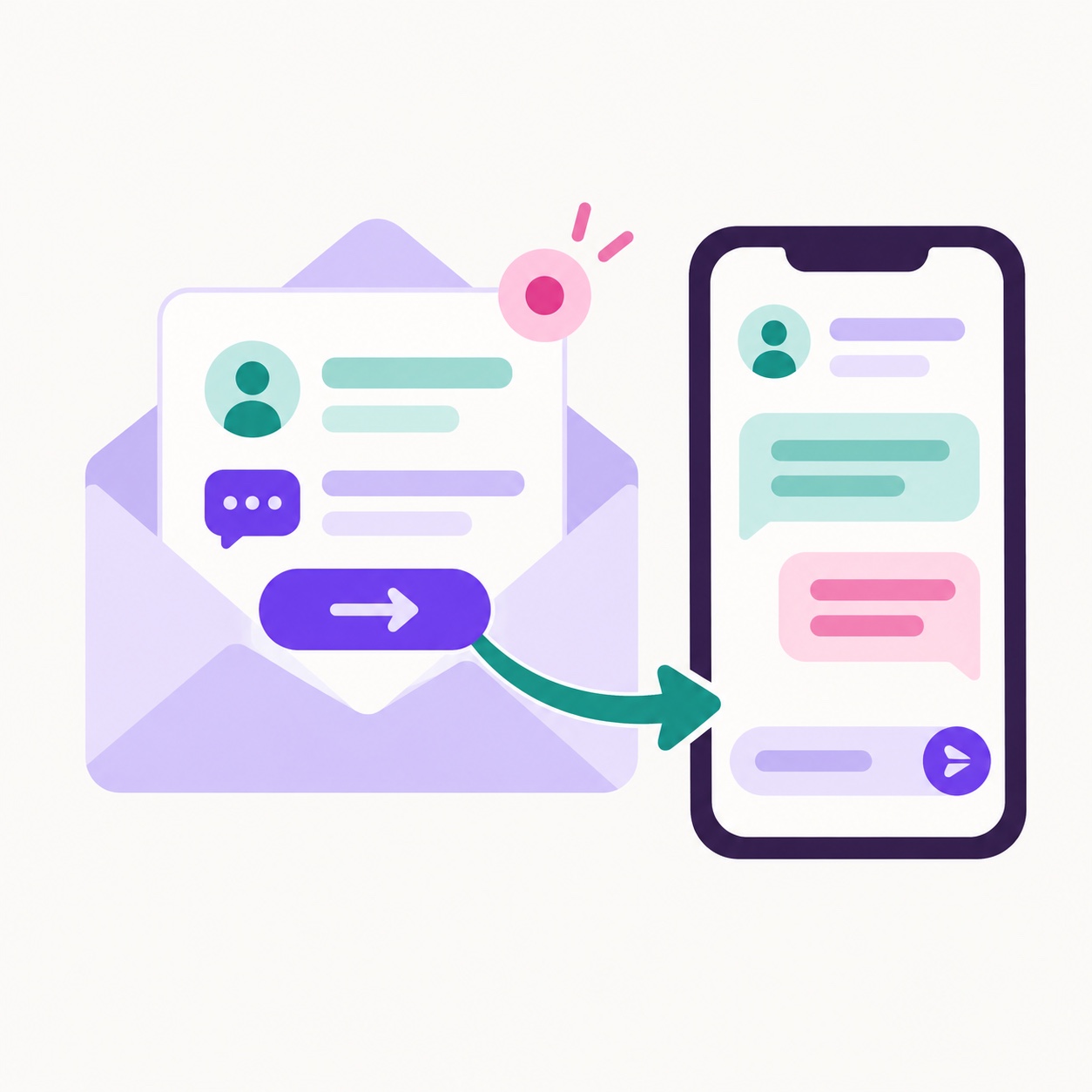
Alert emails with a way in
Tick who on your team should hear about it when the AI cannot answer or a contact reaches the limit: you and the team members on your account. Every alert email carries the sender, the contact, the message and the reason, plus an "Open in inbox" button that lands on that exact conversation. Send yourself a test email from the same page to see what it looks like.
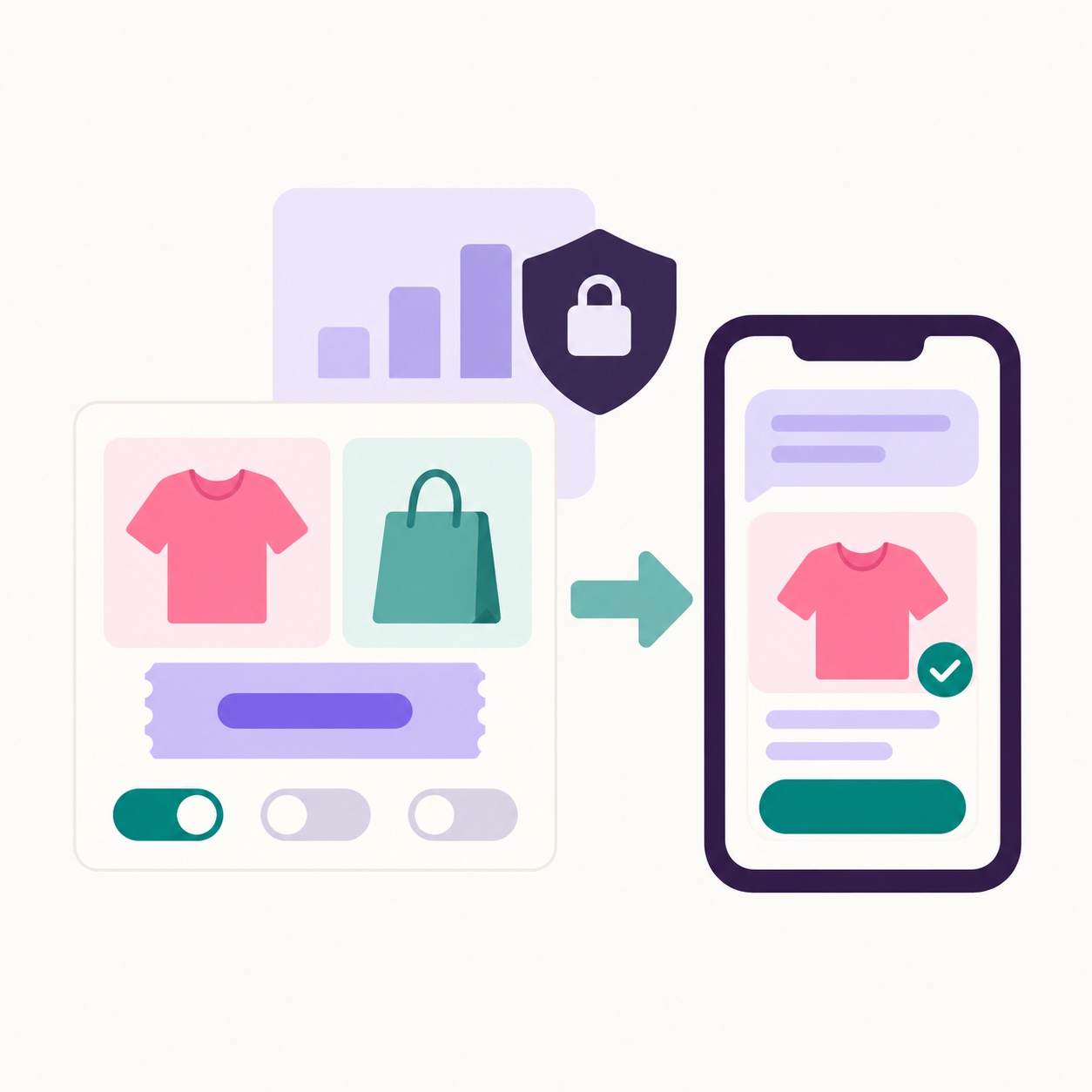
Shopify, without the numbers
With your store connected you decide what the AI may say out loud: whether a product is popular, whether it is in stock, how many are left, and which discount codes it may share. Everything is off until you tick it. Your sales figures, stock counts and statistics are never shared with a contact. The AI only uses them to decide what to recommend.
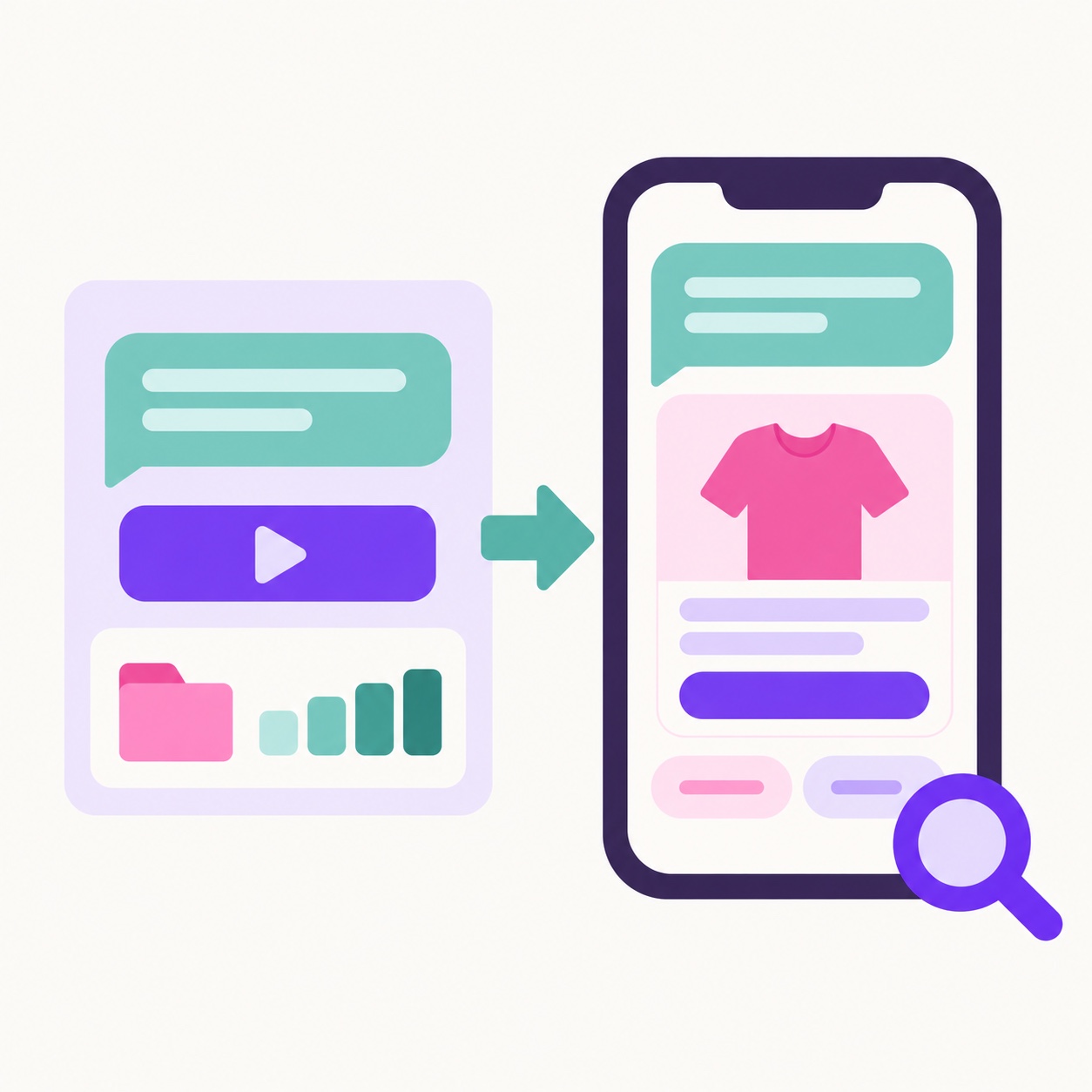
Try it before anyone else does
Type a message a customer might send and see how the AI would handle it: the category, how confident it is, the reply as a phone preview, or the reason it would hand over. Nothing is sent. You can test unsaved changes too, so new instructions are checked before they go live.
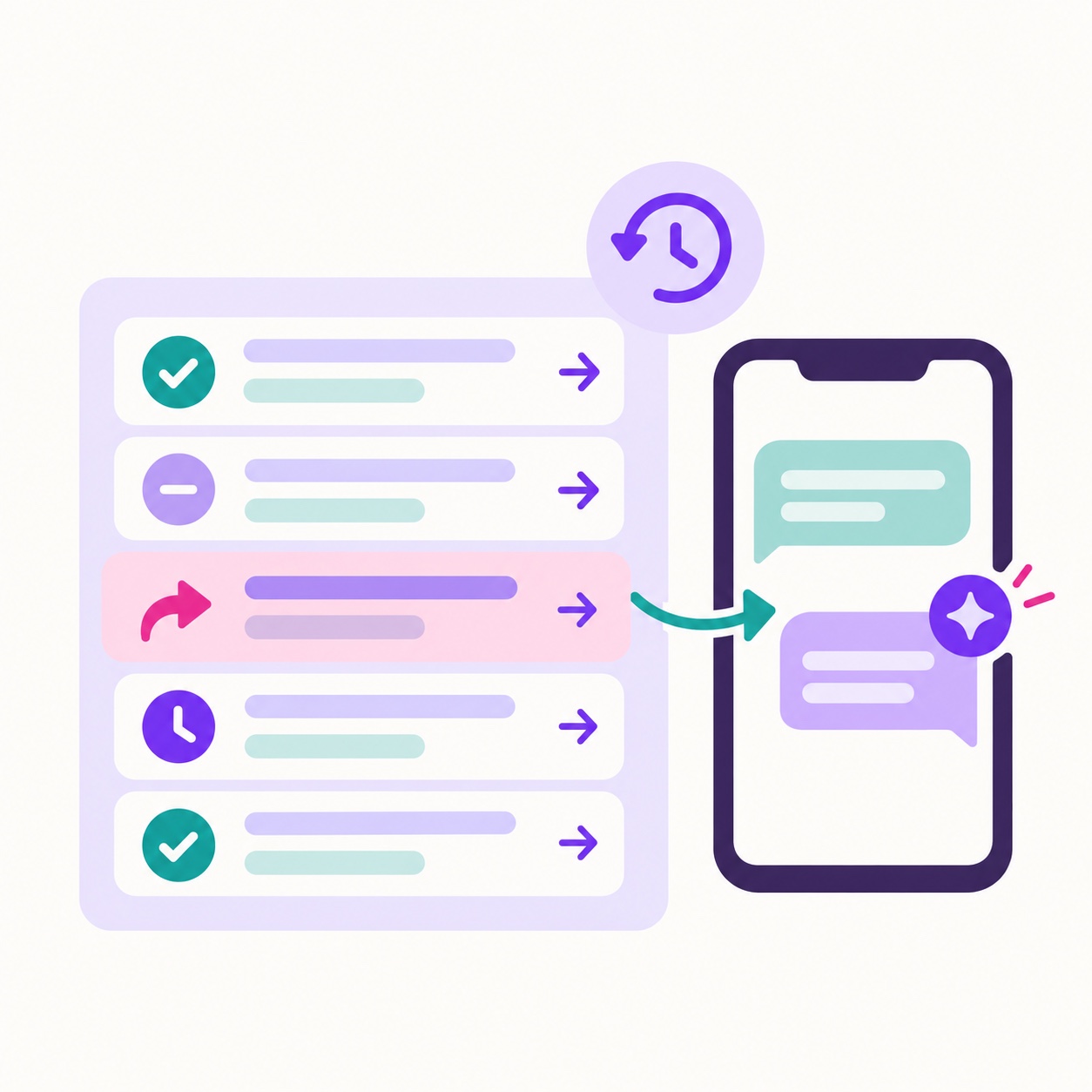
Every decision on record
The Activity tab lists what the AI did with each message in the last 90 days: replied, no reply needed, handed to you, limit reached, and why. Each row links to the conversation in your inbox. In the inbox itself, AI replies carry an "AI autoreply" badge, and the Message Log can be filtered to show them.
Sorted, answered, or handed over
Every incoming message goes through the same short path, and you can see each step in Activity.
Reading the thread
The AI sees the last twelve messages between that contact and that sender from the last three days, in both directions. That includes the campaign the customer is replying to, with its cards, prices and buttons described, and any reply a colleague wrote in the inbox. "How much is the one in the picture?" gets the right answer.
Sorting
With categories, the message is sorted into the one that fits. A plain "thanks" needs no answer. Complaints, opt-out requests, refunds, cancellations, payment, legal or medical matters, anger, and anything outside your instructions go to a person.
Writing
The reply is written from your instructions, the category's sources, the shop facts you allowed and your media library. If you switched on web search for the sender, the AI may do up to two searches for public facts your instructions and sources do not cover, preferring your own websites. It answers in the customer's language, short and concrete, and never says it is an AI.
Checking
Every reply passes the same validation as a message you build in the RCS Designer. Links, message types and chips are checked before anything goes out. A reply that cannot be made valid is not sent, and you get the alert instead.
Two questions, one of them yours: the AI answers that one, says a colleague will come back on the rest, and alerts you about that part. One open question never blocks the whole conversation.
A plain "thanks": on a sender with conversation pricing it gets one short friendly sentence back while the conversation window is open and the reply is free. On a sender that pays per message, the AI stays quiet. It never thanks twice in a row.
Unsubscribed or disabled contacts are never answered.
 Your data, your key, your rules
An AI that knows your business and nothing else
Autoreply does not come with opinions of its own. Its facts are the ones you give it: the instructions on the sender, the instructions on the category, and the sources you ticked. Sources are the same ones your AI Designer and AI suggestions use: your connected Shopify store with products, collections, pages and active discount codes, the web pages you added, your LinkedIn page. Add a web page straight from the category dialog and it is read in the background.
Billed like your own replies. Replies are sent and billed exactly like replies you write in the RCS inbox, with the conversation or per-message pricing of that sender. Replies to your test phones are free.
Your own AI key. The AI work runs on your own AI key, connected under AI settings. Nothing is charged to your SendRCS credits for the AI itself, and usage is listed on your API key page.
No phone numbers or email addresses in plain text. They would be rejected by iPhones, so the AI never writes one into a text. It puts links on chips and names your company instead, and can use a rich card when an address must be shown.
Three levels of instructions. Account-wide instructions from AI settings apply to every sender; sender instructions win over them, and category instructions win over both.
Permissions. Anyone on your team with the Send Messages permission can view the settings and the Activity tab. Changing them needs the account owner or the Manage Account permission.
Nothing goes live by accident. The switch at the top of the editor can always be flipped, but saving with Autoreply on needs an instruction or at least one category, and the page tells you what is missing. Leave with unsaved changes and it asks first.
On in one sitting
Four steps from your AI key to the first automatic reply.
Connect your own AI key
Under AI settings, once for the whole account. Autoreply, Sources and AI suggestions all run on it.
Open Autoreply and pick a sender
Your AI tools, Autoreply, then "Set up autoreply" next to the RCS sender you want to answer for. The robot icon next to the sender in the inbox reply composer takes you to the same page.
Write, sort, choose
Write the instructions (or let "Improve with AI" tighten them), add categories with their sources, set the message types and limits, tick who gets the alert emails. Test a few messages with Try it.
Switch on and save
Flip "Autoreply is on for this sender" and press "Save changes". From the next incoming message, the AI answers, and Activity shows every decision.
Autoreply, answered
What do I need?
A SendRCS account with an approved RCS sender and your own AI key connected under AI settings. Autoreply answers RCS messages to RCS senders. SMS replies are not part of it.
Can I check a reply before it is sent?
Replies go out automatically; that is the point. Use Try it to see how the AI handles typical messages before you switch on, start with low limits, and rely on the alert emails and the Activity tab. Every reply shows in the inbox with an "AI autoreply" badge, and you can take over any conversation at any time.
What happens when the AI does not know the answer?
It does not guess. It stays silent and your alert addresses get an email with the message and an "Open in inbox" button. If only part of a message is outside what you allowed, it answers the rest, tells the customer a colleague will come back on that part, and alerts you.
Can a customer tell it is an AI?
The AI answers as a member of your team, in your tone, and never calls itself an AI. In your own inbox and Message Log the replies are clearly marked, so your team always knows.
Does it answer in the customer's language?
Yes. A message in German gets a German reply, a message in Danish a Danish one, whatever language your instructions are written in.
What does it cost?
Each reply is billed like a reply from the RCS inbox, with the pricing of that sender. The AI itself runs on your own AI key and is billed by your AI provider, never from your SendRCS credits.
Can it answer questions about my shop?
Yes. With your store connected, tick it as a source on the right category and choose on the Shopify tab what it may reveal: popularity, availability, stock counts and discount codes, each separately. Sales figures and statistics are never shared with a contact.
What if I also have a fixed autoreply trigger on the sender?
Both would answer every message, so the Autoreply page warns you and links to your triggers. Keep the fixed text for SMS and virtual numbers, and let Autoreply handle the RCS conversations.
Can my team set it up?
Viewing the settings and the Activity tab needs the Send Messages permission. Changing anything needs the account owner or the Manage Account permission.
Answer in a minute, in your words
An AI that answers from your instructions and your sources, and hands over the moment it should.
- Instructions and categories per sender, with your own web pages and shop as sources
- Rich cards, carousels and chips, with limits per contact and a person one email away
- Every decision on record, every reply marked in your inbox